Importing agent contacts into Salesforce
Prepare a Salesforce import with stable source IDs, reviewed matching rules, linked license evidence and a reconciled pilot batch.
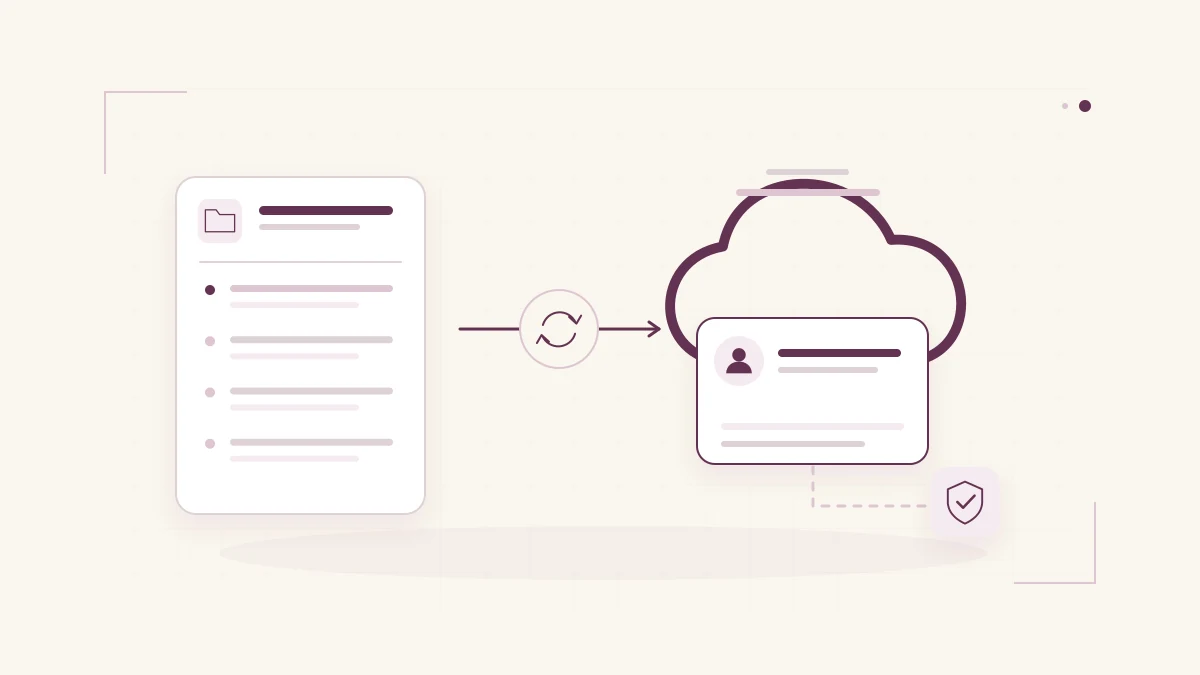
The practical takeaway
Plan identity matching before import. Keep source producer IDs distinct from Salesforce record IDs and preserve license evidence as a one-to-many relationship.
Insurance agent files contain two relationships that a Salesforce import must preserve: each contact belongs to a source identity, and that person may have multiple license records. A quick upload can obscure either relationship if matching and field mapping are left to defaults.
Use this workflow with your Salesforce administrator to prepare a controlled import. The correct tool and object depend on your organization’s configuration and the work the sales team will perform.
1. Choose the object and intended record lifecycle
Decide whether the initial audience belongs in Leads, existing Contacts or another reviewed data model. Record what happens when an individual already exists elsewhere in the organization. A first-time prospecting list and an update to contracted agent relationships should not automatically use the same creation path.
Ask the administrator to review required fields, validation rules, owners and any automation triggered by the import. Record the campaign source and hold status before adding rows. This avoids an import that technically succeeds while generating unassigned work or enrolling contacts into an unintended process.
The core contacts.csv does not supply an employer or company-name field. Many Lead configurations require Company; Salesforce explains that requirement and unknown-value handling. Have the administrator choose the appropriate object or an explicitly labeled placeholder policy. Do not invent an agency from an email domain or shared phone, and review how any placeholder behaves during conversion.
2. Preserve the source identity and edition
Keep the original ZIP, dictionary and CSVs intact. In the working file, treat producer_id, npn, license_number and postal_code as text. Preserve release_id and the field-level source dates so a future reviewer can distinguish when the edition was released from when a particular value was recorded.
Keep business or mailing address geography separate from issuing-state license evidence. Use the snapshot guide when deciding which state property should drive territory assignment. A person with an address in Georgia may have a qualifying license issued in another state.
3. Create a mapping sheet before opening the importer
Build a source-to-destination worksheet and have the record owner review it. A custom source ID field can preserve provenance; whether and how it participates in matching depends on the selected object, tool and configured external-ID support. Do not assume that storing a value changes the import’s matching behavior.
Retain producer_categories as source text when it contains multiple values such as health|life. If mapping to a multi-select picklist, have the administrator define accepted target values and the required separator rather than allowing the raw source string to become one unintended option. Keep phone_extension separately so it is not lost when the main number is normalized.
| Source data | Salesforce planning decision |
|---|---|
| first_name and last_name | FirstName and LastName, reviewed against full_name |
| email and phone | Email and Phone, subject to source and destination review |
| phone_extension | Separate extension property or administrator-approved phone handling |
| No core employer field | Review Company requirements and approved unknown-value treatment before creating Leads |
| producer_id | Text source identifier, with external-ID behavior reviewed if used for upsert |
| Existing CRM match | Salesforce record ID in the controlled update file |
| npn | Text property distinct from the Salesforce ID |
| address_state and address_basis | Source geography properties, separate from licensing |
| producer_categories | Reviewed category mapping that preserves multiple values |
| release_id and dates | Source-edition and date fields |
| License rows | Related object or controlled evidence table joined by producer_id |
4. Review matches without merging different people
Compare the preparation file with existing leads and contacts before upload. Use corroborating identity fields and a reviewed source-to-CRM crosswalk. Shared emails and switchboards are useful review signals, but they do not prove that two rows represent the same person. Matching on a name alone can also connect unrelated individuals.
Salesforce’s duplicate-rule guidance explains that matching and duplicate rules can affect imports. Review the active rules with the administrator. Keep ambiguous records in a hold file rather than disabling controls for the entire campaign or accepting an automatic merge without inspection.
5. Keep license details related to the person
The package’s licenses.csv joins to contacts.csv through producer_id. Preserve each evidence row’s issuing jurisdiction, license number, source class, category, source status, validity basis and snapshot date. These facts should remain together because a category from one row and a status from another can create a misleading summary.
A related custom object may suit an organization that regularly reviews multiple licenses per person. A controlled external evidence table can also work if the CRM retains a stable reference. Do not create another Lead for each license or place every evidence detail in an unstructured note that cannot be traced back to the edition.
6. Test the selected import path
Use Salesforce’s Data Import Wizard overview to understand that workflow, then confirm the appropriate tool for your object and matching requirements. Where an update uses existing Salesforce record IDs, include those IDs explicitly. If using upsert with an external ID, verify the actual object and tool support before running it.
Choose a small pilot containing existing and new records, shared contacts, missing values and multiple licenses. Control workflow enrollment during the test. Inspect field mappings and record outcomes, then confirm that ownership, duplicate rules and evidence relationships behave as planned. Reconcile the pilot before importing the remaining batches.
7. Keep a repeatable update and reconciliation process
Save the preparation file, import report and source-to-Salesforce ID crosswalk. Reconcile created, updated, rejected and held rows. Investigate errors by category, correct the working data and retry only the intended rows. A blind retry of the entire original file can obscure which records were already processed.
For future editions, define which source fields may update and which require review. Preserve human-verified details, relationship owners and opt-outs. Keep the imported source snapshot separate from the team’s current operational truth.
For a recruiting import, tie the record owner and hold stage to the recruiting workflow. A vendor team can use the service-provider guide to keep account research and conversation outcomes separate from source facts.
- Choose objects and confirm required fields.
- Preserve text identifiers and edition context.
- Approve a field map and identity crosswalk.
- Review shared destinations and active duplicate rules.
- Model license evidence without duplicating people.
- Reconcile a varied pilot before full import.
Common questions
Should email and phone override producer_id for every match?
No. Shared destinations can belong to multiple people. Review matching with corroborating identity evidence and the Salesforce IDs of existing records.
Can an external ID field automatically fix all duplicate problems?
No. The selected object, tool, configured matching and duplicate rules determine behavior. Test the intended create, update or upsert path.
What should happen to opt-outs in a new edition?
Retain and apply them. A newly purchased row must not erase a prior request or reset workflow eligibility.
Put the guide to work
Start with a closer look at the data.
Compare the sample and current coverage before choosing a state, Florida county, or national package.